Microsoft 365 is one of the most common recurring IT costs in UK businesses. Most organisations sign up, auto-renew, and never look at it again. The result is predictable: licences pile up, usage drifts, and the monthly bill quietly grows — often without anyone noticing until it's significant.
This guide covers the practical steps any IT team can take to find and eliminate waste in their M365 environment, without disrupting a single user. It's worth doing regardless of pricing, but Microsoft's July 2026 price changes make the case stronger still — the waste below gets more expensive to ignore from your next renewal onward.
1. Get a clear picture of what you're paying for
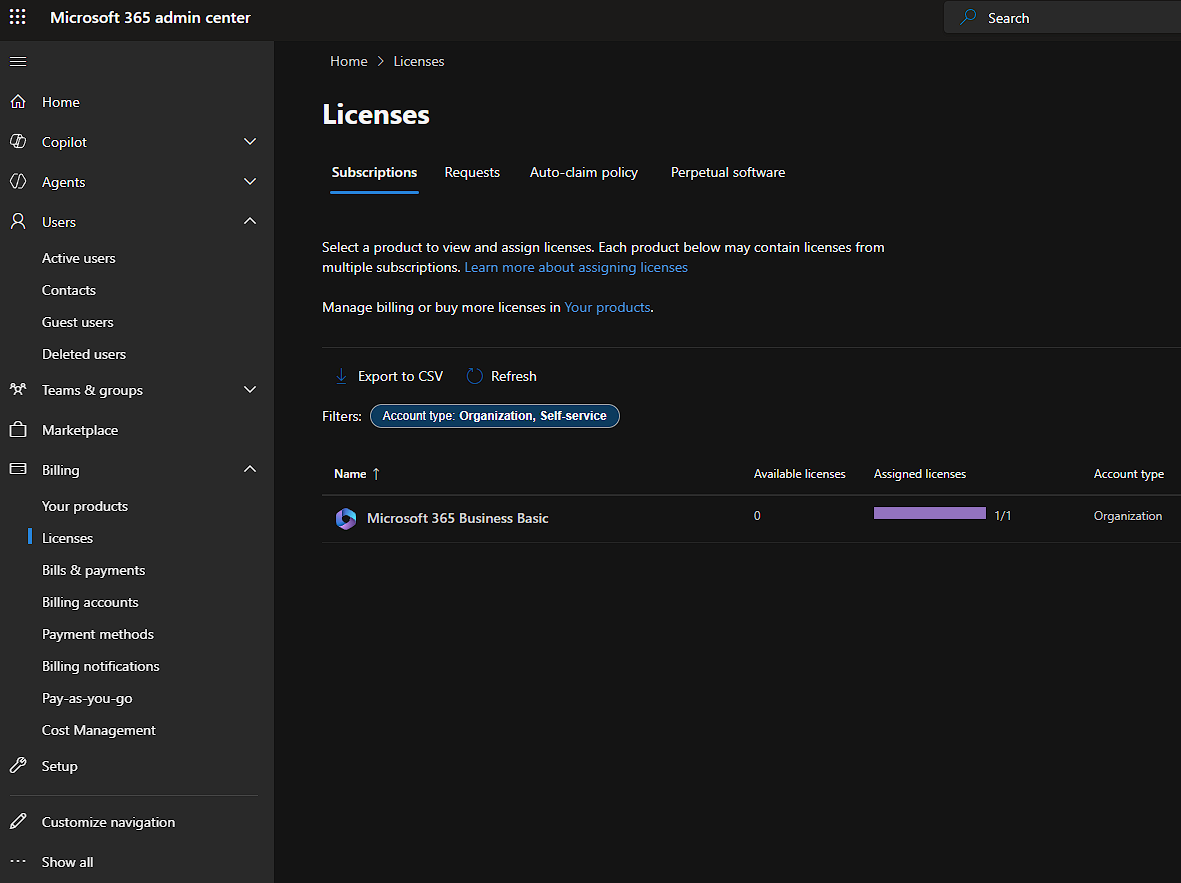
Before you can cut costs, you need to know your current licence portfolio. Log into the Microsoft 365 Admin Centre and go to Billing > Licences. This shows every active subscription, the number of purchased seats, and how many are assigned.
Note the SKU and cost per seat for each. Microsoft 365 Business Basic, Business Standard, Business Premium, E3, and E5 sit at very different price points. Many organisations end up with a mixture of these as they've grown or migrated over time, and rarely revisit whether those choices still make sense.
2. Identify disabled accounts still holding licences
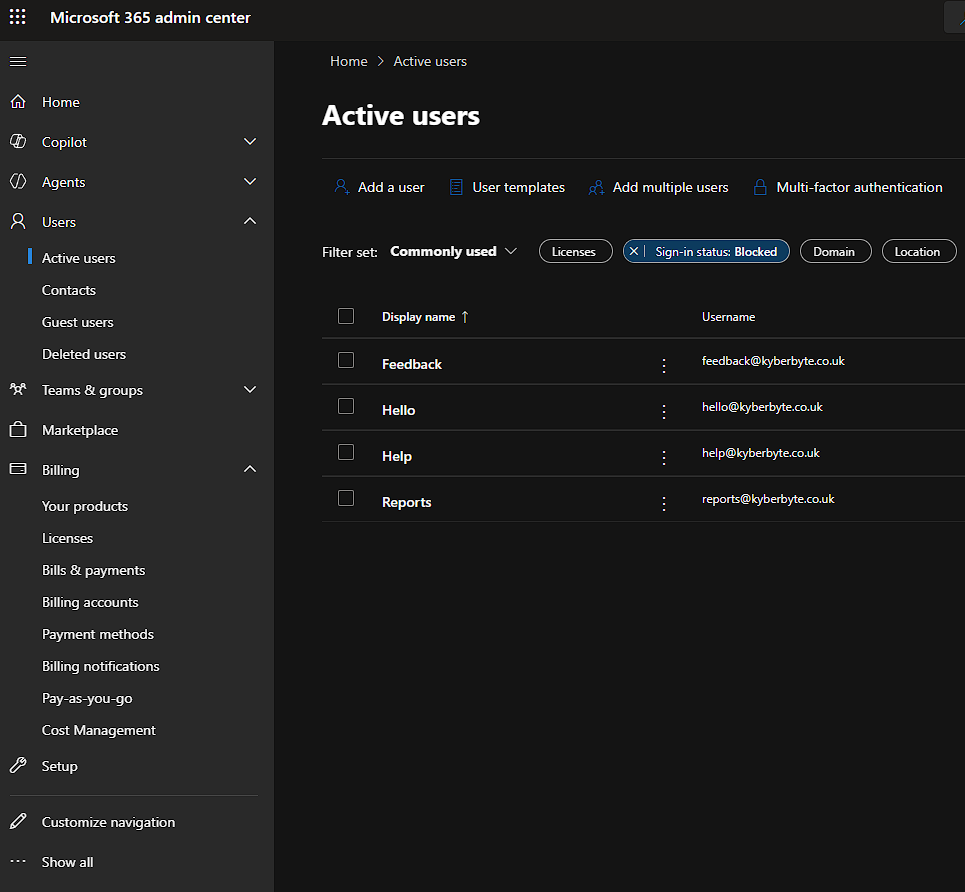
The most straightforward source of waste is accounts marked as disabled in Azure AD that still have a paid licence assigned. These are typically former employees whose accounts were blocked when they left, but whose licence was never removed.
In the Admin Centre, go to Users > All Users and filter by sign-in status: blocked. Cross-reference with your licence assignments. Any disabled account with an active paid licence is confirmed waste — it can be removed immediately with no impact on anyone.
Disabled accounts with licences assigned are one of the most common findings in any M365 audit. Organisations without a formal offboarding process accumulate these quickly.
3. Find inactive licensed users
Beyond disabled accounts, active accounts with no recent sign-in or app activity are strong candidates for review. These are often contractors who finished an engagement, employees who've changed roles, or users who've simply stopped using the tools covered by their licence tier.
Go to Reports > Usage > Microsoft 365 > Active Users in the Admin Centre. This shows activity across Exchange, Teams, SharePoint, and other services over the past 30 days. Users with no activity across all services warrant closer attention.
Be careful here — inactivity alone isn't grounds for removing a licence. Some users have genuinely infrequent needs. Cross-reference with your HR records and line managers before making changes.
4. Audit your shared mailboxes
Shared mailboxes in Microsoft 365 can be accessed by delegates without a paid licence assigned directly to the mailbox itself. Yet many organisations have shared mailboxes with full paid licences attached — often a legacy of a migration that was never cleaned up.
Check your shared mailboxes in the Exchange Admin Centre under Recipients > Mailboxes, filtering by mailbox type. Any shared mailbox with a paid licence assigned is almost certainly unnecessary cost with a straightforward fix.
5. Right-size over-provisioned users
Beyond removing waste entirely, consider whether users are on the right SKU for their actual usage. Business Premium includes Intune, Azure AD P1, and advanced security and compliance features that most users in a typical organisation will never touch.
Active users who only use Exchange Online and Microsoft Teams could comfortably operate on a lower SKU. Common candidates for right-sizing include:
- Reception and front-of-house staff
- Finance and admin roles with light IT usage
- Part-time or occasional users
- Users upgraded during a migration who don't use the additional features
This step requires more care than the others. Downgrading incorrectly removes access to features users may depend on. Map out feature dependencies before making changes, and pilot with a small group first.
6. Check for unassigned purchased seats
Licences that have been bought but never assigned to a user are pure cost with zero benefit. These appear in Billing > Licences as the gap between purchased and assigned seats. Any meaningful gap is worth investigating — either the licences should be assigned, or the subscription quantity should be reduced at your next renewal.
7. Build licence review into your offboarding process
The most reliable way to prevent waste rebuilding over time is making licence review a mandatory step every time someone leaves. A simple checkbox on your offboarding checklist — licence removed or reassigned — stops the problem from accumulating again.
Set a calendar reminder for a quarterly review too. Even with good offboarding hygiene, things slip through. A regular audit cadence catches what the process misses.
See what your M365 environment is really costing you
Kyberbyte automates this entire process. Connect your tenant with read-only permissions and get a complete savings report — inactive accounts, disabled users with licences, shared mailbox candidates, right-sizing opportunities — in minutes.
Start Your Free Scan →